Quotex App Download for PC
Register and download the QxBroker desktop app for your PC (Windows 11/10/8/7) using our method and recommendations.
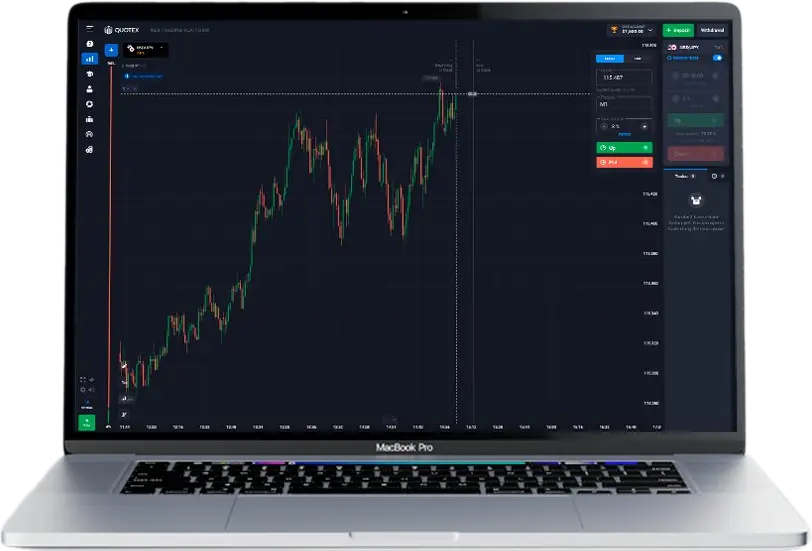
Quotex has become a popular platform for trading a variety of assets, from cryptocurrencies to commodities. While many traders enjoy the flexibility of the mobile app, you might prefer the comfort and screen space of your PC. This guide explores how to access Quotex on your computer and answers common questions about the process.
Quotex Web App for PC: Trade Directly from Your Browser
The easiest way to trade on Quotex from your PC is through their web-based platform. This method offers several advantages:
Universal Compatibility:
Whether you use Windows, macOS, or Linux, the Quotex web platform works seamlessly across all major operating systems.
No Downloads or Installs:
Simply visit the official Quotex website and log in to your account. No need to install any software or worry about updates.
Full Functionality:
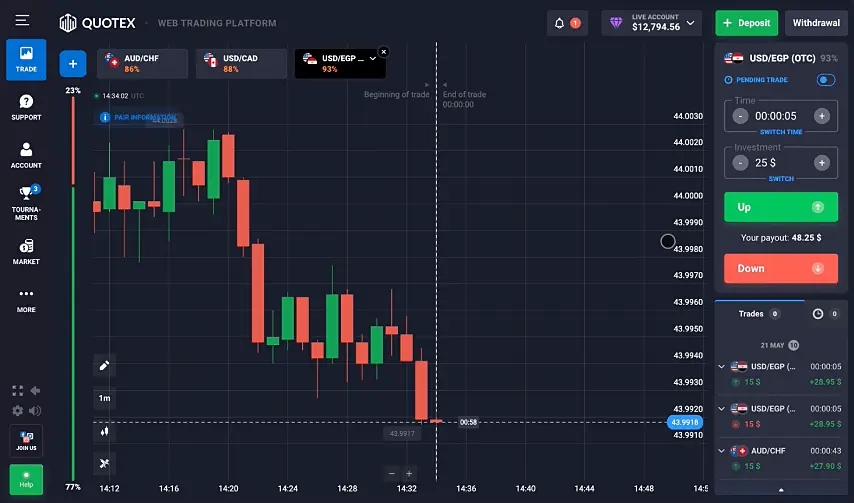
You get access to all the features and tools available on the Quotex mobile app, including charting, indicators, and order execution.
Low System Requirements:
The web platform runs smoothly even on older computers with limited processing power.
To start trading on Web App:
- Go to the official Quotex website (Click on our button and get the Wellcome Offer for new users).
- Log in to your existing account or create a new one.
- Begin exploring the platform and start trading.
Below we also present a new installation method that became available in 2025.
Install Quotex as a Progressive Web App (PWA)
If you want Quotex to feel like a native desktop app — launching directly from your taskbar or desktop without opening a browser, you can install the web platform as a Progressive Web App (PWA). This modern installation method combines the speed and security of the browser version with the clean, app-like experience of a standalone trading window.
Unlike emulators or third-party installers, the PWA keeps you entirely within the official Quotex environment, receives automatic updates, and works smoothly on both Windows and macOS — no manual setup or compatibility issues.
Quick install tip
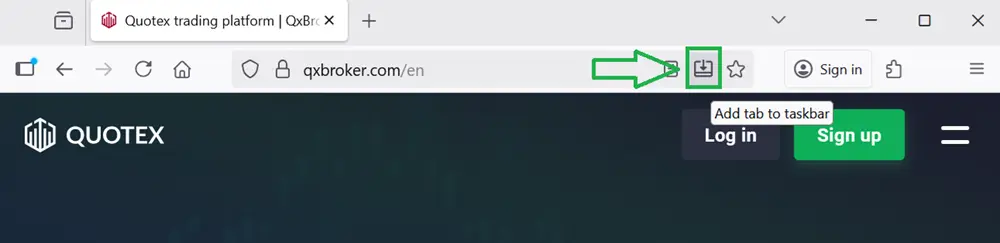
When you open the official Quotex website, look to the right side of your browser’s address bar — you’ll usually see a small download or “install” icon (its shape may differ depending on your browser).
Just click it and confirm — Quotex will instantly install as a desktop shortcut.
If you don’t see the install icon
Sometimes the browser doesn’t immediately show the installation prompt — for example, if the tab hasn’t fully loaded or if the site is opened in incognito mode.
In that case, you can install Quotex manually through your browser settings:
- Google Chrome (Windows or macOS): open the three-dot menu in the top-right corner → select “Install App.”
- Microsoft Edge (Windows 10/11): open the three-dot menu → go to “Apps” → “Install this site as an app.”
- Brave Browser: click the browser menu → “Install Quotex.”
- Opera / Opera GX: go to the site menu → “Install site as app.”
Once installed, the PWA opens in its own window without browser tabs or distractions. You can pin it to your taskbar or Dock and launch it just like a regular desktop app.
Why the PWA version is worth using
The Progressive Web App is lightweight, fast, and always up to date. It launches instantly, consumes minimal system resources, and provides a clean, distraction-free trading environment. Most importantly, you remain on the official Quotex domain, ensuring the same level of safety and data protection as on the main web platform.
Beware of Fake Quotex Apps
You might come across websites offering a “Quotex download PC.” Be cautious, as these are often scams. Quotex does not have a dedicated desktop application. Downloading software from unofficial sources can expose your computer to:
- Viruses and Malware: Malicious software can harm your computer and compromise your data.
- Data Theft: Fake apps may be designed to steal your personal information, including login credentials and financial details.
- Unwanted Software: These downloads often bundle additional software you didn’t consent to install, like adware or browser hijackers.
Always stick to the official Quotex website for accessing the platform.
Trading Without a Browser: The Android Emulator Option
If you prefer a dedicated window for trading and want to avoid using a browser, you can use an Android emulator. Emulators create a virtual Android environment on your PC, allowing you to run Android apps. Here’s how to use an emulator for Quotex:
Download for Windows with Mobile Emulator
- Step 1: Choose and Install an Emulator.
Popular options include:
- Bluestacks: Known for its user-friendly interface and compatibility with a wide range of apps.
- NoxPlayer: A good choice for gaming and resource-intensive apps.
Download the installation file from the emulator’s official website and follow the on-screen instructions.
- Step 2: Set Up the Emulator
Once installed, launch the emulator. You’ll need to sign in with your Google account or create a new one to access the Play Store.
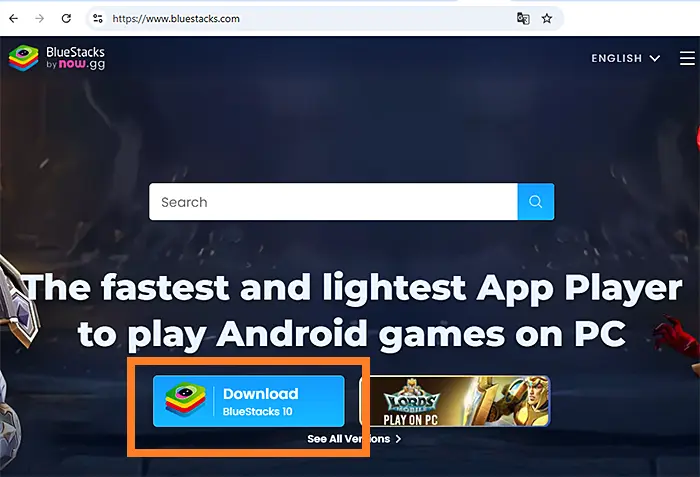
- Step 3: Install Quotex on PC
- Open the Play Store within the emulator.
- Search for “Quotex.”
- Download and install the official Quotex app.
Or log in to your personal QxBroker account and download the APK file for Android. Then open it with the emulator and follow the installation instructions.
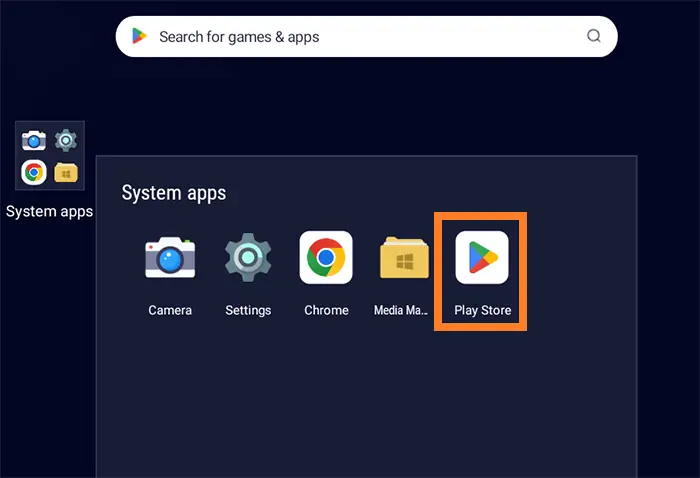
Once installed, find the Quotex icon on your emulator’s home screen and log in to your account. You can now trade on Quotex as you would on your mobile device, but with the added convenience of a larger screen and keyboard/mouse control.
Benefits of Using an Emulator:
- Dedicated Trading Window: Trade on Quotex in a separate window without browser tabs or distractions.
- Familiar Interface: Use the same Quotex app interface you’re accustomed to on your mobile device.
- Keyboard and Mouse Control: Navigate the platform and execute trades quickly using your keyboard and mouse.
Consider these factors when choosing your preferred method:
- Technical Comfort: If you prefer a simple approach and don’t want to install additional software, the web platform is ideal.
- Resource Availability: If your computer has limited resources, the web platform is a lighter option.
- Trading Habits: If you prefer a dedicated trading environment and frequently use keyboard shortcuts, an emulator might be more suitable.
Web Platform vs. Emulator vs. PWA: Which is Right for You?
Both the web platform and emulator offer ways to trade on Quotex from your PC. The best choice depends on your preferences and needs.
| Feature / Option | Web Platform | Progressive Web App (PWA) | Android Emulator |
| Installation | No installation required — runs directly in any browser | One-click install from browser, adds shortcut to desktop | Requires emulator setup (e.g., BlueStacks, LDPlayer) |
| Performance | Fast and stable, depends on browser speed | Optimized and lightweight, launches instantly | Heavier, slower startup due to virtualization |
| Interface | Opens in a browser tab with navigation bar and controls | Standalone window — clean and app-like experience | Mobile-style interface inside a virtual device |
| Updates | Automatic via browser | Automatic in background, no manual updates | Manual or emulator-dependent updates |
| System Resources | Minimal | Very low | High — uses CPU and RAM for virtualization |
| Security | Fully secure on official Quotex domain | Same security level as web version | Depends on emulator source and settings |
| Compatibility | Works on all modern browsers (Windows, macOS, Linux) | Works on Chrome, Edge, Brave, Opera (Windows & macOS) | Works on Windows and macOS with Android emulators |
| Best For | Quick access from browser | Traders who want a desktop app feel | Users preferring the Android interface or mobile layout |
While Quotex doesn’t offer a standalone desktop app, you have convenient options for trading from your PC. Whether you choose the accessibility of the web platform or the dedicated environment of an emulator, you can enjoy the features and tools that make Quotex a popular choice for traders worldwide. Always prioritize security by using the official Quotex website and be wary of fake app downloads.
Quotex for PC FAQ
Can I download a Quotex App for PC?
Quotex currently doesn’t offer a dedicated desktop application for download. However, you can access the full platform through their web-based platform on any PC operating system.
What's the best way to trade Quotex on my computer?
The easiest way is to use the QxBroker web platform directly in your browser. It’s universally compatible and requires no downloads or installations.
I found a website offering a "QxBroker App for PC." Is it safe?
Be cautious! Quotex doesn’t have an official desktop app. Downloading files from unofficial sources could expose you to malware or scams. Always use the official website.
Can I use Quotex on Windows 10?
Yes, the web platform is compatible with all major operating systems, including Windows 10. You can access it through any browser.
Is it safe to enter my financial details on the web platform?
The Quotex website uses encryption and security measures to protect your data. However, always ensure you’re on the official website and be wary of phishing attempts.
Where can I find help or support for using Quotex on my PC?
You can access Quotex’s support resources directly from their website. Look for a “Help Center,” “Support,” or “Contact Us” section.
Risk Disclosure: Trading digital options and leveraged financial instruments involves substantial risk and may result in the loss of your capital. These activities are not suitable for everyone. Take time to evaluate your financial situation and risk tolerance before participating. Always ensure that any trading activity is permitted under the laws and regulations of your country.